Doorbell test
Ring each doorbell once. Every director's phone on shift must ring. A silent phone gets fixed before open.
Steven can run the test alone inference. Only the Lorex account owner can add a phone that is missing fact. Source: opening checklist item gn-doorbells, trc-agents-server main 3777bcd; Lorex Home manual, device sharing.
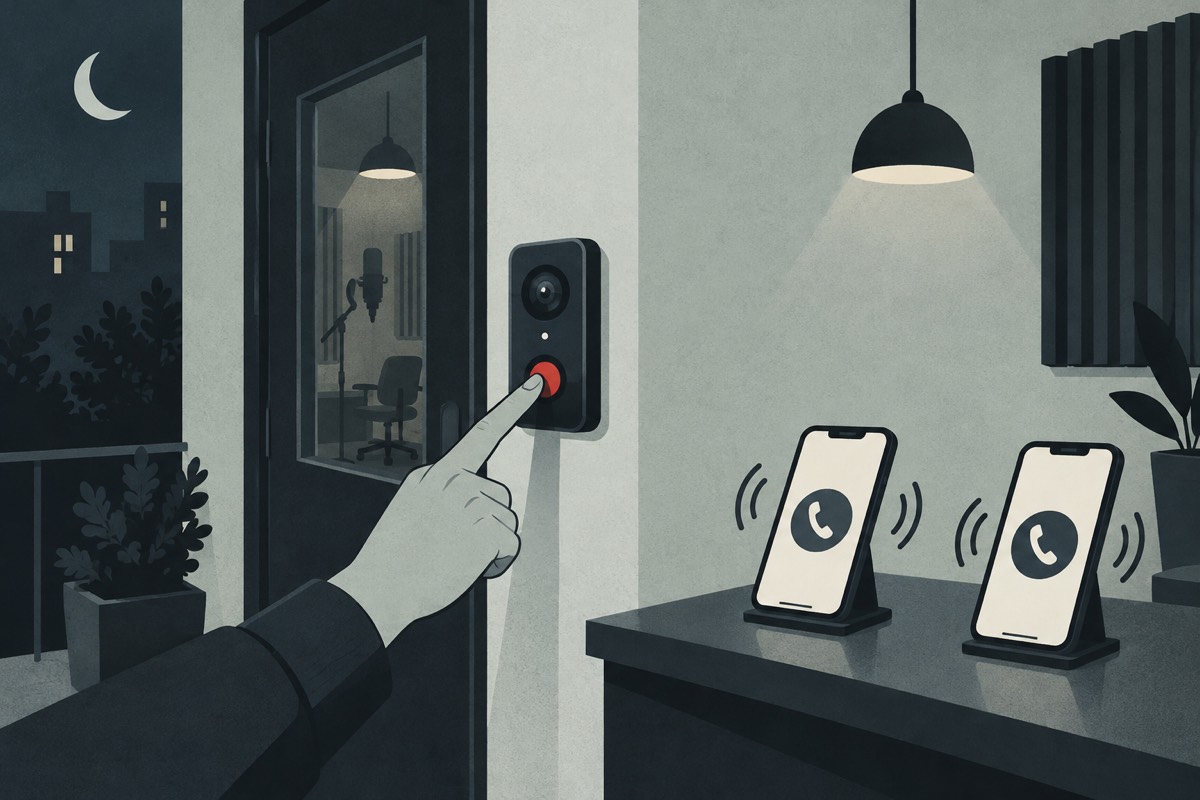
✅ The opening test, checklist item gn-doorbells
- Get the manager and every director on shift, with their phones unlocked and the ringer on.
- Press the front doorbell once. Every one of those phones must ring.
Staff were shared the doorbell named “Front Door”. That name is secondhand, from a Gmail summary.
- Press the second doorbell once. Every phone must ring again.
The checklist says two doorbells. Where the second one is and what it is called in the app is not written down anywhere.
- A phone stayed silent? Fix it now with the steps below, then ring again.
- Check off the item. Write who was missing in the notes.
🟢 What a pass looks like
- Both doorbells rang on the manager's phone and on every director's phone on shift.
- Any phone that missed was fixed and rang on a second try.
- The notes name anyone who could not be fixed before open.
fact from the item's note. opening checklist item gn-doorbells, trc-agents-server main 3777bcd
🔕 A phone did not ring
- Open the Lorex app on that phone. Swipe down on the Devices screen to refresh. The doorbell should be listed.
Not listed means the share was never sent or never accepted. Go to Add a phone below.
- Tap the doorbell's settings, then
Notifications, and turn on Alert Notifications.Shared users have to turn this on themselves.
- In iPhone Settings, open Notifications, then Lorex, and allow notifications. Make sure no Focus mode is silencing it.
- Ring again.
➕ Add a phone
- The new person installs the Lorex app and signs up with their own email.
The App Store now lists Lorex Home as Lorex Classic, under the same app. That reading is an inference.
- The account owner opens the app, taps the settings above the doorbell, then
Share Device, thenAdd Useror the + button.Newer app screens say
Shared Users, thenAdd Shared User. - The owner types the new person's Lorex email, sets permissions and confirms.
- The new person accepts the invite, swipes down on Devices to refresh, and turns on notifications.
- Run the opening test once with the new phone.
📞 Who to call
- Jacob, to send a Lorex invite. He sent Lorex invites in his 9/24 fix pass. fact memory project_jacob_fix_pass_and_jmi_wall_2026_09_24 (“Lorex invites”)
- Steven has already accepted the Front Door share. secondhand memory project_lorex_staff_app_2026_10_06 (Gmail, Sep 2026)
🕳️ Not known yet
- Which account owns the Lorex system.
- Where the second doorbell is and its name in the app.
- The doorbell models.